A Walk Through Soft Light
The hallway walk keeps attention on posture and rhythm. In Pavo ai, describe a similarly focused movement for your own reference; use Pavoai to review whether the subject stays readable.
Video Ideas, Ready to Explore
A product image, a short social idea, or a rough narrative can all become a brief. Pavoai is a place to test the visual direction before building a finished edit.
A familiar product does not need the same opening every time. Bring a reference to Pavo ai and describe a setting, a reveal, or a restrained camera move. Pavoai gives you a draft to assess beside the original image. Keep the Pavo ai version that communicates the idea clearly, and check product details before using it in a campaign.
A glance, a gesture, or a change in the background can make a short scene worth exploring. Write that moment into Pavo ai instead of describing an entire film at once. Use Pavoai to compare the opening and pace. A Pavo ai draft can then inform the cut, caption, or sequence you assemble in your usual editing workflow.
Some feedback is easier to give when there is something to watch. Use Pavo ai to turn a written concept into a draft, with appropriate references for the chosen mode. Share a Pavoai direction with collaborators through your normal review process. Ask what the Pavo ai scene communicates, what remains unclear, and which decision the next version should test.
Motion References
These curated clips are references for movement, framing, and transitions, not a claim of Pavo ai authorship or guaranteed output. Use a Pavoai reference to describe the creative direction you want to explore.
The hallway walk keeps attention on posture and rhythm. In Pavo ai, describe a similarly focused movement for your own reference; use Pavoai to review whether the subject stays readable.
A portrait gives way to a blue-lit performance. Bring the transition idea, not a promised result, into Pavo ai. In Pavoai, select supported inputs that make the destination clear.
Flowing white fabric frames a fashion portrait as the camera moves. Use Pavo ai to explore how subject and surroundings share attention, then review the balance in your Pavoai draft.
A snowy bicycle scene transforms into summer surfing. For a Pavo ai transition brief, identify both settings and the intended change. Use Pavoai to assess continuity rather than assume it.
Raised sparklers bring a clear gesture to a beach scene. Try a simple action in Pavo ai before adding more movement; Pavoai makes the resulting direction available for your review.
The camera circles a seated model against a warm backdrop. Describe the camera path and subject separately in Pavo ai, then inspect your Pavoai draft for framing and unwanted motion.
A good draft starts with a choice: the subject, the opening frame, or the movement that carries a scene. Pavo ai keeps these decisions close to creation. Use Pavoai to explore an approach, then ask Pavo ai for another direction when the first result misses your intent.
Tell Pavo ai what the viewer should notice first: a person, an object, a gesture, or a change in the setting. Pavoai turns that brief into a starting point. Give Pavo ai clear movement and camera notes instead of an unrelated list of adjectives.
An existing image can establish framing, clothing, color, or the product you want to explore. Add it to Pavo ai, then describe a modest movement. In Pavoai, reference-led creation offers a different starting point from text alone; review how Pavo ai interprets the details.
When the selected mode supports opening and closing frames, Pavo ai lets you supply both. Define the change between them rather than leaving the destination vague. Use Pavoai for an initial transition study, and check whether the Pavo ai result follows the intended visual sequence.
Different references answer different questions. An image may establish appearance; a supported video or audio input may guide another part of the brief. Pavo ai shows the options for the selected mode. Keep your Pavoai inputs focused, and review the Pavo ai result against that purpose.
Choose an available format before starting in Pavo ai, so a vertical idea and a widescreen scene begin with different framing. Pavoai keeps format choices beside the creative controls. Check the edges, subject placement, and legibility when the Pavo ai preview is ready.
A second attempt should test a specific decision. In Pavo ai, keep the reference and change the movement, or keep the action and adjust the framing. Use Pavoai for focused experiments. Compare each Pavo ai draft before deciding which version deserves further editing.
Choose what to make, provide useful direction, and watch the result critically. Pavoai fits at the draft stage; your judgment remains part of every step.
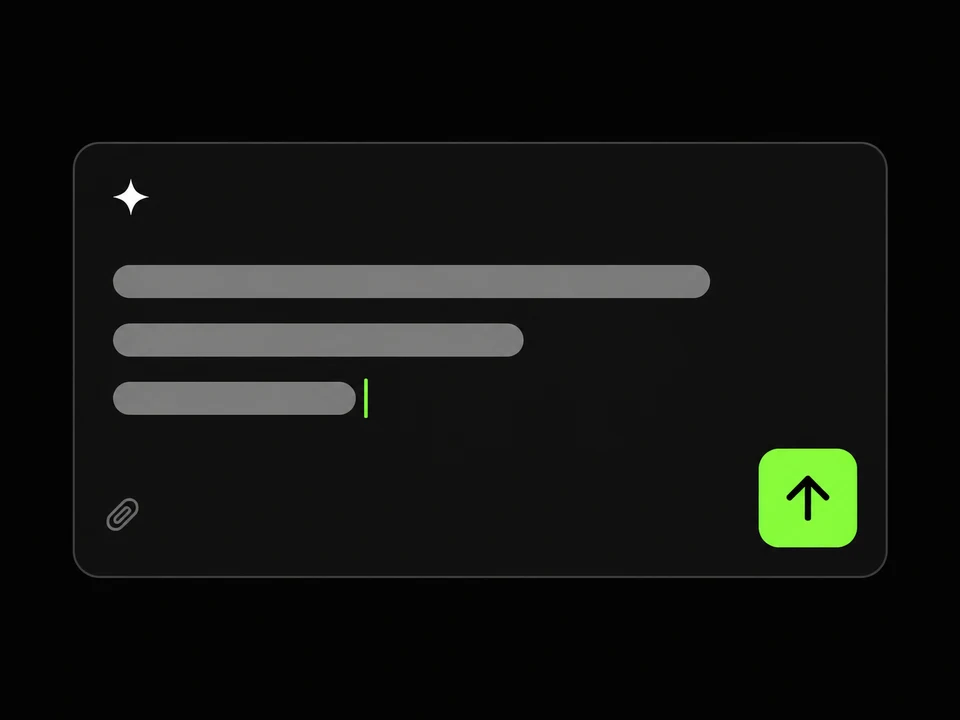
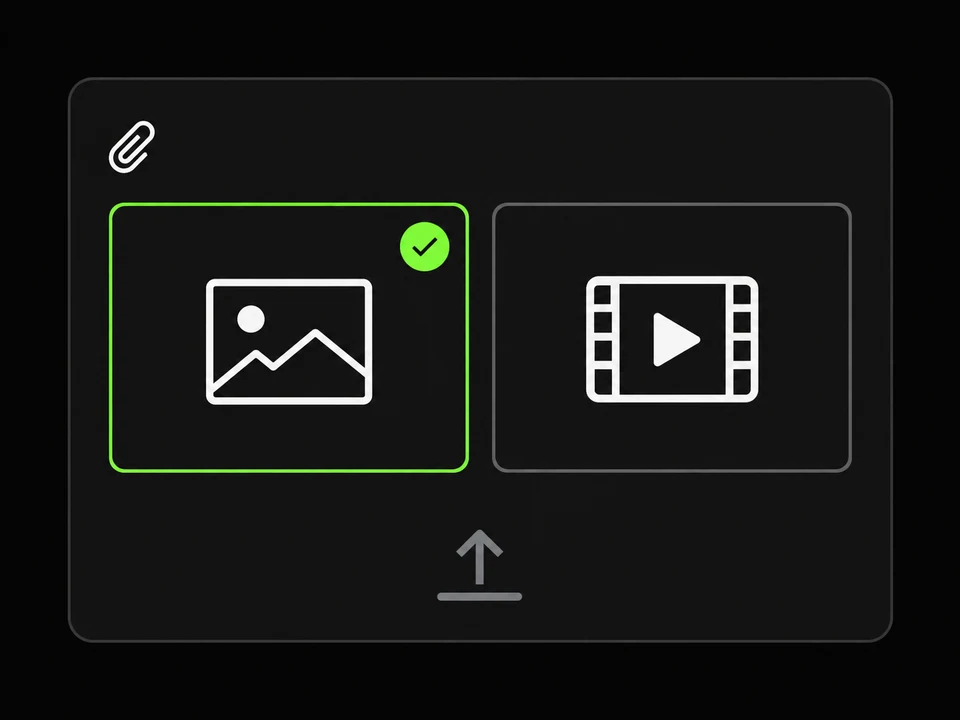
Open Pavo ai and choose image or video creation. Start with the mode that matches the material you have, not the one with the longest list of options. Pavoai shows the controls available for that choice.
Add your prompt and supported references in Pavo ai. State the subject, the action, and the visual detail that matters most. Keep a Pavoai brief narrow enough that you can tell whether the result follows it.
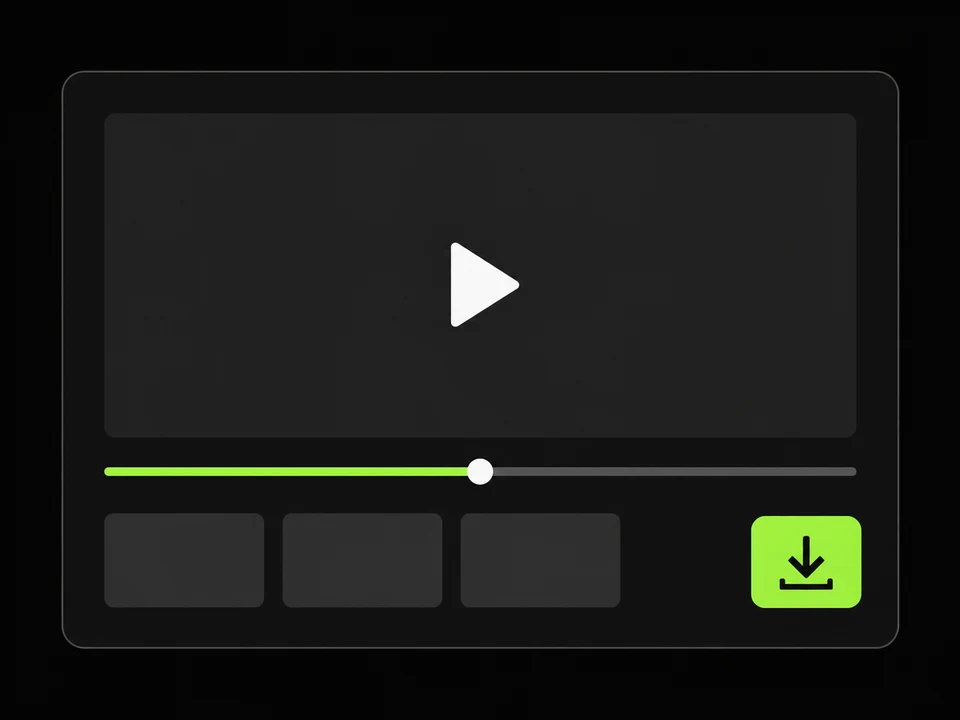
Play the Pavo ai result and check it against the brief. Change one part when another attempt is useful, then download an available result for your next workflow. A Pavoai draft still needs review before publication.
Illustrative creative scenarios, not verified customer reviews. These notes describe what different creators might check when reviewing a Pavoai result.
Use Pavo ai to ask whether the subject reads before the background does. A useful concept draft makes that decision visible without pretending the campaign is finished.

Creative Planner
Campaign direction
Watch the first moment of a Pavo ai preview without reading the prompt. If the action is unclear, simplify the next brief instead of adding another effect.

Social Content Creator
Opening moments
Compare a Pavo ai draft with the approved source image. Note differences in shape, color, and presentation before asking anyone to approve a visual direction.

Brand Content Coordinator
Reference review
Play the Pavo ai output at normal speed. Check which movement supports the shot, where the framing drifts, and what would still need work in an editor.

Video Editor
Motion and pacing
Treat a Pavo ai scene as an illustration to inspect, not proof of a scientific fact. Review accuracy, sequence, and any detail that might confuse the audience.
Science Explainer
Visual clarity
Read the Pavo ai credit allowances and billing intervals below. Consider the drafts you expect to review, not just the clips you hope to publish. Check Pavoai plan details before purchasing.
🎉 Congrats! You've unlocked special pricing
Offer ends in:
Billed annually. Credits are issued monthly and expire at the end of each monthly period. Unused credits do not roll over.
$142.56 billed annually
Save $95.04/year
Great for solo creators publishing short-form videos
Billed annually. Credits are issued monthly and expire at the end of each monthly period. Unused credits do not roll over.
$287.28 billed annually
Save $191.52/year
Built for agencies and teams running frequent video production
Billed annually. Credits are issued monthly and expire at the end of each monthly period. Unused credits do not roll over.
$1,439.28 billed annually
Save $959.52/year
For studios and commercial teams that need high-volume generation
For any inquiries or assistance, please contact us:
Choose an image or a short scene, write a focused brief, and see what Pavo ai makes of it. Start with Pavoai, then let your review guide the next decision.
Give an idea a first frame, then give that frame movement. Pavo ai brings image and video creation into one browser workspace. Explore a shot with Pavoai, review it, and decide what comes next.